
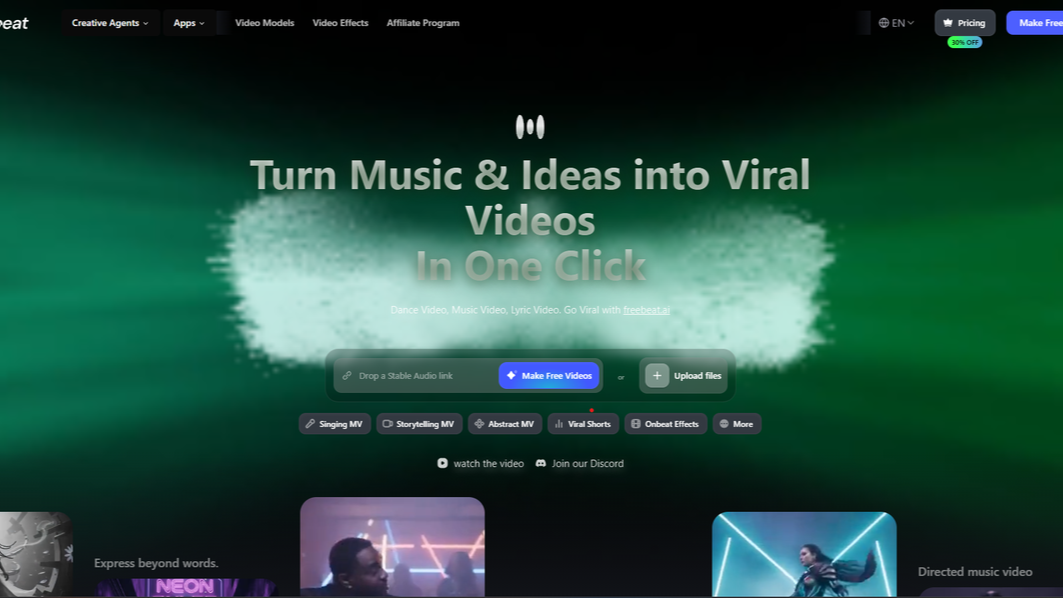
If you want to create music video with AI in 2026, the real question is not only which platform can generate the best-looking visuals. The more practical question is which workflow can turn a finished track into a usable music video quickly, affordably, and with as little manual editing as possible.
For musicians, producers, and independent creators, the goal is not to generate random clips, but to create visual for music that follows the song's timing, structure, energy shifts, and emotional movement. This matters even more when working with full-length songs, AI-generated tracks, or a Suno workflow where you want to add visual to suno song without downloading, converting, and rebuilding everything manually.
That is where Freebeat's workflow becomes useful. Instead of treating visuals as an extra layer added after the song is finished, Freebeat is built around music-led video creation, helping creators move from audio to a structured MV more efficiently.
Why Freebeat Fits This Workflow
Freebeat Value Proposition | What It Means for Creators | Why It Matters for MV Creation |
|---|---|---|
Purpose-built AI music video generator | Freebeat is designed specifically for music-led video creation, not just general AI video generation. | The workflow starts from the song, so the visuals are built around the music instead of being added later. |
Beat-synced full-length videos | The platform helps match visuals to the rhythm, energy, and structure of the track. | This makes the final MV feel more connected to the song, especially during choruses, drops, and transitions. |
Consistent characters | Freebeat helps maintain visual consistency across scenes. | This is useful for artist-led MVs where the performer or main character needs to stay recognisable throughout the video. |
Accurate lip-syncing | Singing and performance-based visuals can align more closely with the vocals. | This makes the output feel more polished and suitable for music-focused content. |
One-click generation or directed control | Users can generate quickly or guide the creative direction, scenes, style, storyboard, and output. | It works for both creators who want speed and creators who want more control over the final MV. |
Suno-to-video workflow | Users can add visual to Suno song projects without downloading, converting, or manually syncing files. | This saves time for creators working with AI-generated music. |
Freebeat works best for creators who want a practical AI music video workflow: fast enough for regular content production, structured enough for full-length MVs, and flexible enough for users who still want creative control over the final direction.
In short, Freebeat fits well when your goal is to turn audio track to music video through a structured, music-first process. Other platforms may fit better when the priority is experimentation, manual control, or short-form speed.
Step 1: Start With the Right Music Video Workflow
A good music video generator should reduce production time, not create more work. If you still need to manually cut clips, match every beat, fix every transition, and rebuild the full structure in another editor, the platform may look affordable at first but become expensive in time.
Before choosing a tool, ask yourself:
Is this a full MV or a short clip?
Does the song need beat-synced visuals?
Do you need lyrics or captions?
Are you working with a Suno-generated track?
Do you want manual control or a guided workflow?
How much editing are you willing to do after generation?
Is the track already mixed and mastered, or does it need processing first?
For musicians trying to finish content quickly and cost-effectively, the most efficient route is usually a workflow that starts with the audio and builds the video around it. That means the audio itself needs to be release-ready before you generate visuals from it.
Step 2: Open Freebeat and Choose the Main MV Path
To make a full MV in Freebeat, start with the main Agent workflow rather than jumping straight into a narrow specialist mode. Specialist modes such as Singing MV, Storytelling MV, Abstract MV, Viral Short, and OnBeat Effect can be useful when you already know the exact output you want.
For a complete music video, the main Agent path is usually the most practical starting point. It guides the project through music input, visual direction, style planning, reference images, scene planning, shot planning, storyboard, video clips, and final merge.
This is where Freebeat works more like a structured music video maker than a simple visual generator. Instead of creating disconnected clips that need to be stitched together later, it helps build the video around the song.
Step 3: Make Sure Your Track Is Release-Ready Before You Upload
This step is easy to skip, but it changes the quality of everything that follows. Freebeat's music analysis reads rhythm, energy, and section changes directly from the audio file you give it. If your track is still a rough mix or an unmastered export from Suno or Udio, problems in the audio carry into the video: a kick drum buried in a muddy low end gives beat detection less transient information to work with, and the visual cuts may land slightly off the beat. Inconsistent loudness between sections makes the energy mapping less defined, so the chorus may not feel visually different from the verse.
The fastest way to fix this is to run the track through an AI mixing and mastering platform before uploading it to Freebeat. Cryo Mix handles this in the browser. Upload individual stems or a stereo bounce, then use Nova, the built-in conversational AI, to adjust the mix in plain language instead of tweaking plugin settings manually. If you want your track to match the sound of a specific commercial release, reference mastering lets you upload a target track and the engine adjusts your audio to match its loudness, tonal balance, and dynamics.
Once the master is done, export a high-resolution WAV. That file becomes the foundation for the video. For producers working with AI-generated music from Suno, this step is especially worth doing. Suno outputs are listenable but not mastered for streaming platforms like Spotify or Apple Music. Running a Suno track through Cryo Mix before uploading to Freebeat gives you a cleaner master and a better-synced video from the same workflow.
Step 4: Give Freebeat a Clear Creative Direction
Before generating the project, write a clear creative direction. It does not need to be overly detailed. It simply needs to tell the system what kind of MV you want.
A useful prompt should include:
Main subject or performer
Setting or visual world
Mood and atmosphere
Camera or movement style
Energy progression across the song
For example:
A cinematic night-city performance MV with neon lighting, close-up artist shots, a restrained opening, and stronger camera movement when the chorus hits.
This kind of prompt gives enough direction without overloading the system. If the prompt is too vague, the result may feel generic. If it is too complicated, the project may become inconsistent. For cost-effective generation, the best prompt is clear, focused, and easy to carry through the full MV.
Step 5: Review the Creation Settings
Before starting the session, check your creation settings carefully. This includes character input, aspect ratio, resolution, style, captions, watermark settings, and whether you want a faster or more detailed generation mode.
This step matters because some settings affect the whole project. If you are creating a YouTube-style MV, 16:9 may be best. If you are creating content for TikTok, Instagram Reels, or YouTube Shorts, a vertical format may be more useful.
It helps to decide the final use case before generating:
Full music video
Short-form teaser
Lyrics video
Social media clip
Album visual
Suno song visual
If the output format is wrong from the start, even a visually strong video may need to be regenerated or heavily edited later.
Step 6: Let Freebeat Analyse the Music
Once the session begins, Freebeat moves through a staged workflow. One of the most important stages is Music Analysis.
This is where the system reads the track's rhythm, section changes, pacing, and energy arc. Instead of simply placing visuals over a song, the workflow uses the audio as the basis for the video structure.
For music videos, this is important because viewers can feel when visuals do not match the song. A chorus should usually feel more visually impactful than an intro. A beat drop should not feel flat. A bridge or breakdown may need a change in mood, lighting, or movement.
This is also where the quality of your mix and master pays off. If your kick drum has a clean transient and your bass is not bleeding into the midrange, Freebeat's beat detection locks in tighter and the visual cuts land closer to the actual beat grid. If the chorus is louder and brighter than the verse in a controlled way, the energy mapping produces a stronger visual shift at exactly the right moment. A well-mastered file does not just sound better. It gives the AI more accurate data to build the video from.
This is where Freebeat fits best compared with more general AI video tools. Tools like RunwayML may offer more manual creative control, but they require the creator to manage the relationship between image, timing, and audio more directly. Freebeat is more useful when you want the system to help organise the video around the music itself.
Step 7: Approve the Style, Brief, and References Early
After Music Analysis, review the Style & Framework, Creative Brief, and Reference Images carefully. This is where the project moves from a general idea into a clearer MV concept.
At this stage, check whether the visual direction fits the song. Ask yourself:
Does the style match the genre?
Does the mood fit the track?
Can this visual world last across a full song?
Does the subject look consistent?
Does anything feel too generic or too complicated?
This is one of the cheapest stages to revise. If the style or references do not match the music, fix them before moving into scenes, storyboard, and video clips. A common mistake is waiting until the video is already generated before deciding the concept feels wrong. That usually creates more rework.
Step 8: Build the MV Through Scene and Shot Planning
Scene Planning is where the song becomes a visual structure. Freebeat divides the project into larger visual sections, helping the video follow the movement of the track.
A strong scene plan should reflect the music's major changes. The intro may use slower visuals, the verse may focus on character or atmosphere, the chorus may increase motion and intensity, and the bridge may introduce contrast.
Shot Planning then turns those larger scenes into specific visual moments. This is where camera angles, actions, transitions, and shot-level details become clearer.
Freebeat's director-level automation is useful here because it reduces the amount of planning needed to move from a song to a structured visual sequence. However, creators who want to control every single frame may still prefer a more manual platform such as RunwayML.
Step 9: Review the Storyboard Before Generating Clips
The Storyboard stage is the final major checkpoint before motion generation. This is where you review the visual sequence and decide whether the MV is ready to become video.
Look for weak or repetitive frames, inconsistent characters, visuals that do not match the song, or moments where the chorus and beat drop need more impact.
If only one or two frames are weak, regenerate those specific frames instead of restarting the entire project. This keeps the workflow more cost-effective because you are not throwing away the parts that already work.
Step 10: Generate Clips, Merge, and Export
Once the storyboard is strong, move into Video Clips. This is where the MV starts to come alive through motion.
Do not approve clips only from thumbnails. Watch the motion carefully, especially during key moments such as the intro, chorus, beat drop, bridge, and outro. A still frame can look good but move poorly, feel mistimed, or seem disconnected from the audio.
If a clip does not work, regenerate that clip only. Keep the strong clips and replace the weak ones. This selective revision approach is more efficient than repeatedly generating full videos from scratch.
After that, move to Merge. Watch the final video as a complete piece, not as separate clips. Check whether the opening catches attention, the chorus has enough visual impact, transitions feel natural, and the visuals follow the track's energy.
If the preview works, export the final MV. If something feels wrong, trace the issue back to the correct stage instead of trying to fix everything at the end.
How to Revise Without Wasting Time or Credits
One useful habit in AI music video creation is revising surgically. Do not restart the full project unless the entire direction is wrong.
Problem | Go Back To | What to Fix |
|---|---|---|
Subject looks inconsistent | Character or Reference Images | Tighten the source image or reference board |
Timing feels wrong | Music Analysis or Scene Planning | Recheck energy arc, segment splits, and scene timing |
Style feels wrong | Style & Framework | Adjust the visual direction earlier |
Concept feels generic | Creative Brief | Strengthen the mood, subject, and story direction |
One frame looks weak | Storyboard | Regenerate only the weak frame |
One clip moves poorly | Video Clips | Regenerate only that motion segment |
Final video feels uneven | Editor, then upstream stage | Find the weak moment and trace it back |
Audio sounds muddy or flat | Pre-upload mastering | Run the track through Cryo Mix before re-uploading |
This is where a staged workflow can save both time and money. You can keep what works, fix what does not, and avoid unnecessary full restarts.
Where Freebeat Fits Best, and Where It Does Not
Freebeat fits best when the music is the centre of the video. It is strongest for full-track MVs, Suno song visuals, lyrics videos, beat-led visuals, and structured artist content. It is useful for creators who want to move from audio to video without spending too much time on manual editing.
However, it is not automatically the best choice for every creator. If you want highly experimental abstract visuals, Neural Frames may be more suitable. If you want quick style drafts or concept animations, Kaiber can be a good option. If you want maximum manual control over the final visual direction, RunwayML may be a better fit. If you need fast social clips rather than a complete MV, Pika may be more practical.
Final Thoughts: The Best AI Music Video Workflow Depends on Your Goal
AI has made music video creation faster and more accessible, but not every tool solves the same problem. Some platforms are better for visual experiments. Some are better for short-form clips. Some are better for manual editing control. Others are better for structured full-song workflows.
For musicians and producers, the most cost-effective approach is to start with the song and choose a tool that supports the output you actually need. That starts with getting the audio right. A track that is properly mixed and mastered before it enters the video pipeline will produce a better result at every stage, from music analysis to final export.
If you want a complete MV that follows timing, structure, chorus changes, and full-song progression, the combination of Cryo Mix for audio production and Freebeat for visual generation covers the full pipeline from rough bedroom demo to a mastered, streaming-ready track with a beat-synced music video, all from the browser.
If you want abstract visuals, quick drafts, or full creative control, the other tools in this comparison are still worth considering. The best decision is not about picking the most popular platform. It is about choosing the workflow that helps you finish the video you actually need.
Frequently Asked Questions
Do I need to master my track before making an AI music video?
You do not strictly need to, but it makes a noticeable difference. AI music video generators like Freebeat analyze the audio file to determine beat positions, energy levels, and section changes. A mastered track with clean transients, consistent loudness, and defined sections gives the AI more accurate data. That means tighter beat sync and better visual contrast between verse and chorus. Platforms like Cryo Mix can handle the mixing and mastering in the browser before you upload to Freebeat.
Can I use a Suno song with this workflow?
Yes. If your track was generated in Suno, you can master it first in Cryo Mix for better audio quality, then upload the mastered WAV to Freebeat. Freebeat also accepts direct Suno links if you want to skip mastering, but the video output will sync better with a properly mastered file.
How long does it take to go from rough mix to finished music video?
The full workflow takes roughly 40 to 60 minutes. Mixing and mastering in Cryo Mix takes around 10 to 20 minutes of active work. Generating the video in Freebeat takes another 15 to 25 minutes, most of which is processing time. The total hands-on time is closer to 20 minutes.
What audio format should I export for the best video results?
Export a high-resolution WAV file (44.1 kHz or 48 kHz, 24-bit). WAV preserves the full audio quality that Freebeat's music analysis relies on. Compressed formats like MP3 lose transient detail, which can reduce the accuracy of beat detection and energy mapping.