Channel Dynamics
Smooth, Compression, Leveler, Upward, Thicken, Clipper, Gate, Duck and De-ess.
| Knob | What it does |
|---|---|
| Smooth | Finds harsh resonances and turns them down only while they ring. |
| Compression | A three-stage compressor: Peak, Level and Multiband. |
| Leveler | Rides the level like fader automation, so loud and quiet parts even out without a compressed sound. |
| Upward | Lifts quiet parts instead of pulling loud parts down. |
| Thicken | Parallel compression: a heavily compressed copy blended with the dry track. |
| Clipper | Flattens peaks above a threshold. |
| Gate | Turns the track down in the gaps between phrases or hits. |
| Duck | Turns this track down while another track plays. |
| De-ess | Tames harsh S and T sounds. |
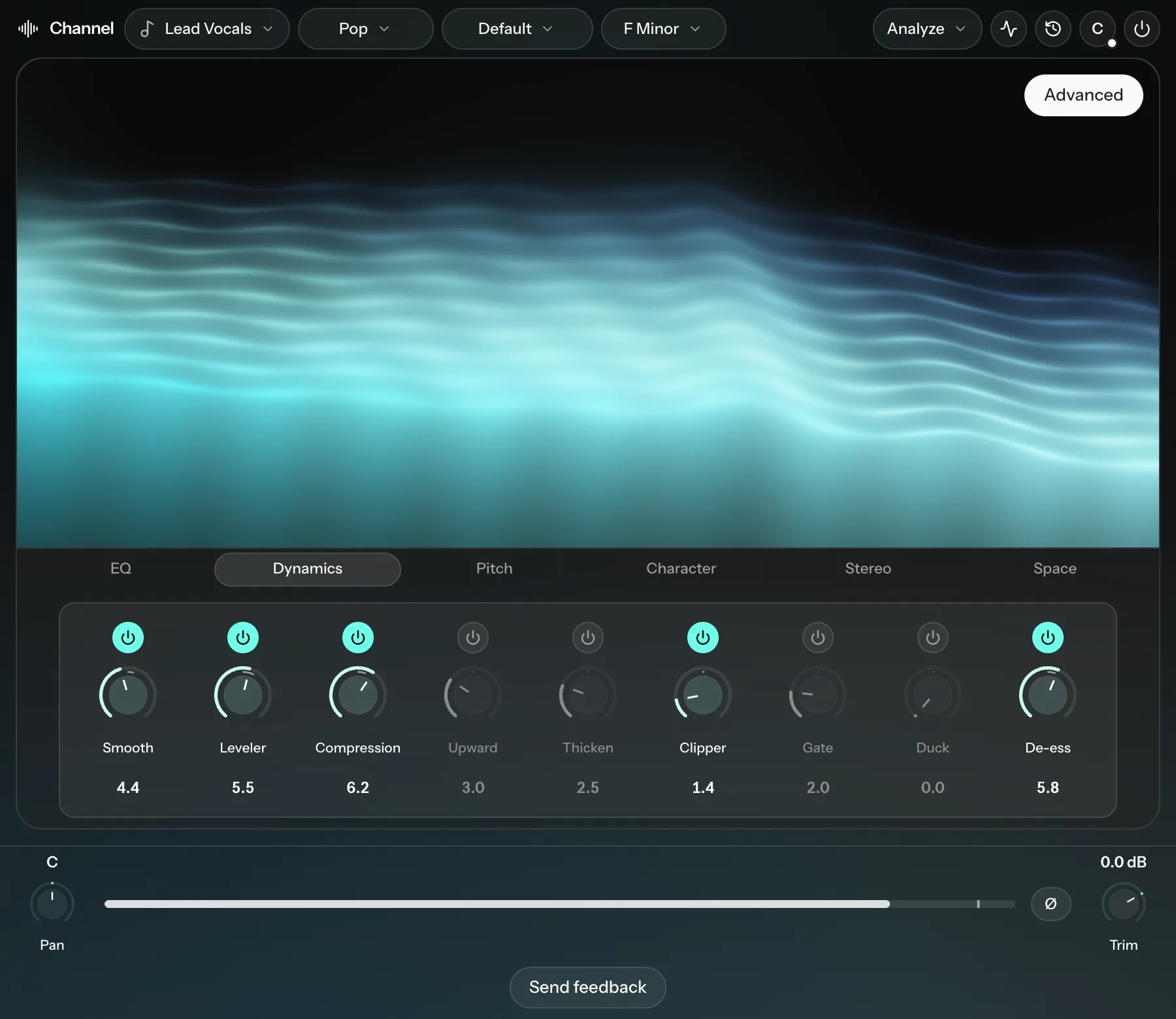
Smooth
Smooth was called Silk in earlier versions. The higher you set it, the more resonances it reduces. Unlike a fixed EQ cut, it only acts while a resonance is ringing.
Its settings show which frequencies are being reduced. Click the headphones at the top of its settings to hear only what is being taken out. You can also set the Attack (0.1 to 20 ms, default 1) and Release (5 to 300 ms, default 50).
Compression
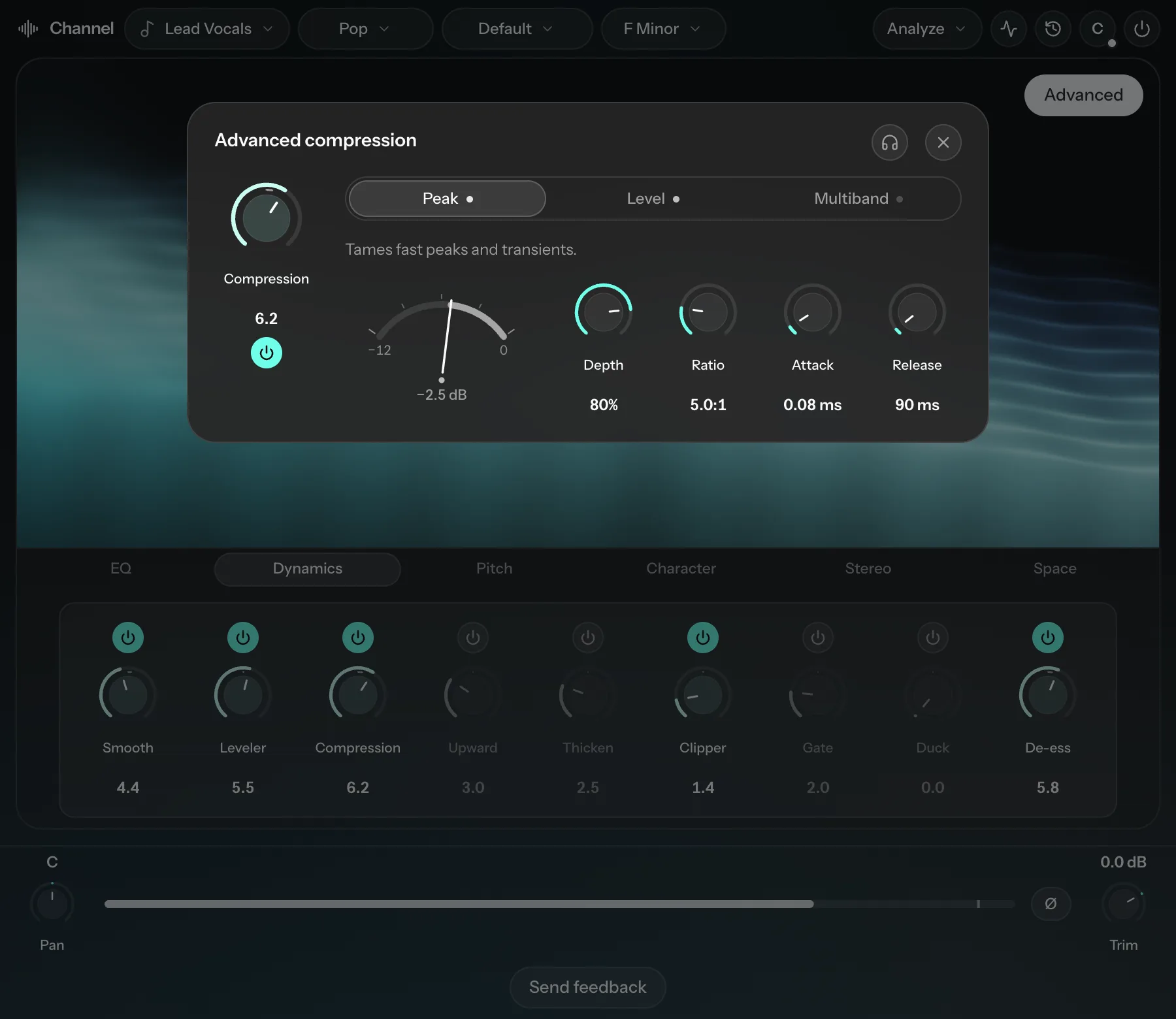
The main knob sets how hard the track is driven into three stages that run one after another. Open Advanced compression to adjust each stage:
- Peak catches fast peaks and transients first.
- Level is slower and shapes the overall body and movement.
- Multiband splits the track into four bands: Low, Low-mid, High-mid and High.
Peak and Level each have Depth, Ratio, Attack and Release. Depth sets how much of the main knob that stage gets. It defaults to 70%, and at 0 the stage is off. For example, set Level's Depth to 0 to use only Peak.
Multiband has an amount for each band (0 to 100%, all at 0 by default, so it starts off), plus shared Ratio, Attack and Release. Drag the split lines on the chart to move the bands, or double-click a split to return it to Auto, the frequency Cryo Mix detected.
Leveler, Upward and Thicken
- Leveler has one setting, Response (80 to 3000 ms, default 150): how quickly it follows level changes.
- Upward has Attack, Release and Ratio (1.1:1 to 4:1, default 2:1). Its chart shows how much it lifts the track as it plays.
- Thicken has the same three settings, with Ratio from 1:1 to 20:1 (default 8:1).
Clipper
Clipping just the peaks, gently, across a mix can make a master louder and cleaner, because the limiter has less work to do. Knee runs from Hard (the default) to Soft (up to 6 dB). Hard is the cleanest way to control peaks. Soft rounds into the threshold and colors the tone more, a bit like saturation.
Gate
Raising Gate raises the threshold, so more of the quiet parts are turned down. Set it too high and it cuts the ends of words, such as a trailing S. If that happens, lower Gate or raise Hold (0 to 400 ms, default 50) and Release (5 to 800 ms, default 50) so the gate stays open longer. Attack (0.1 to 20 ms, default 0.5) sets how fast it opens.
A gate only cleans up the gaps. To remove noise that sits under the performance, such as hiss or room tone, use Cleaner on the Space tab.
Duck
The higher Duck is set, the further this track drops while its source plays.
- Source: pick up to 8 tracks. On Auto, Cryo Mix uses every kick in the project, or the drum tracks if there is no kick. Online and in the Hub, switch Stems to Groups to pick every track of one role at once, such as all your lead vocals.
- Detector:
- Peak reacts to the start of each hit and ducks for a set time.
- Signal follows the whole source signal, so a kick with a long tail ducks for longer.
- Spectral removes only the frequencies the source is using, while it plays. It is often the most transparent choice.
- Recovery: how fast the track comes back: Tight (60 ms), Quick (90 ms), Natural (150 ms) or Smooth (200 ms).
Example: on a beat, set the vocals as the source and choose Spectral. Every time the vocal plays, its frequencies are carved out of the beat, so the vocal sits clearly on top.
De-ess
The higher De-ess is set, the more it reduces sibilance. In its settings, drag the band (or its edges) to cover the frequencies where the harsh S sounds sit.