Channel EQ
Filters, tone bands, EQ correction and a fully editable EQ curve, before or after the effects.
Controls
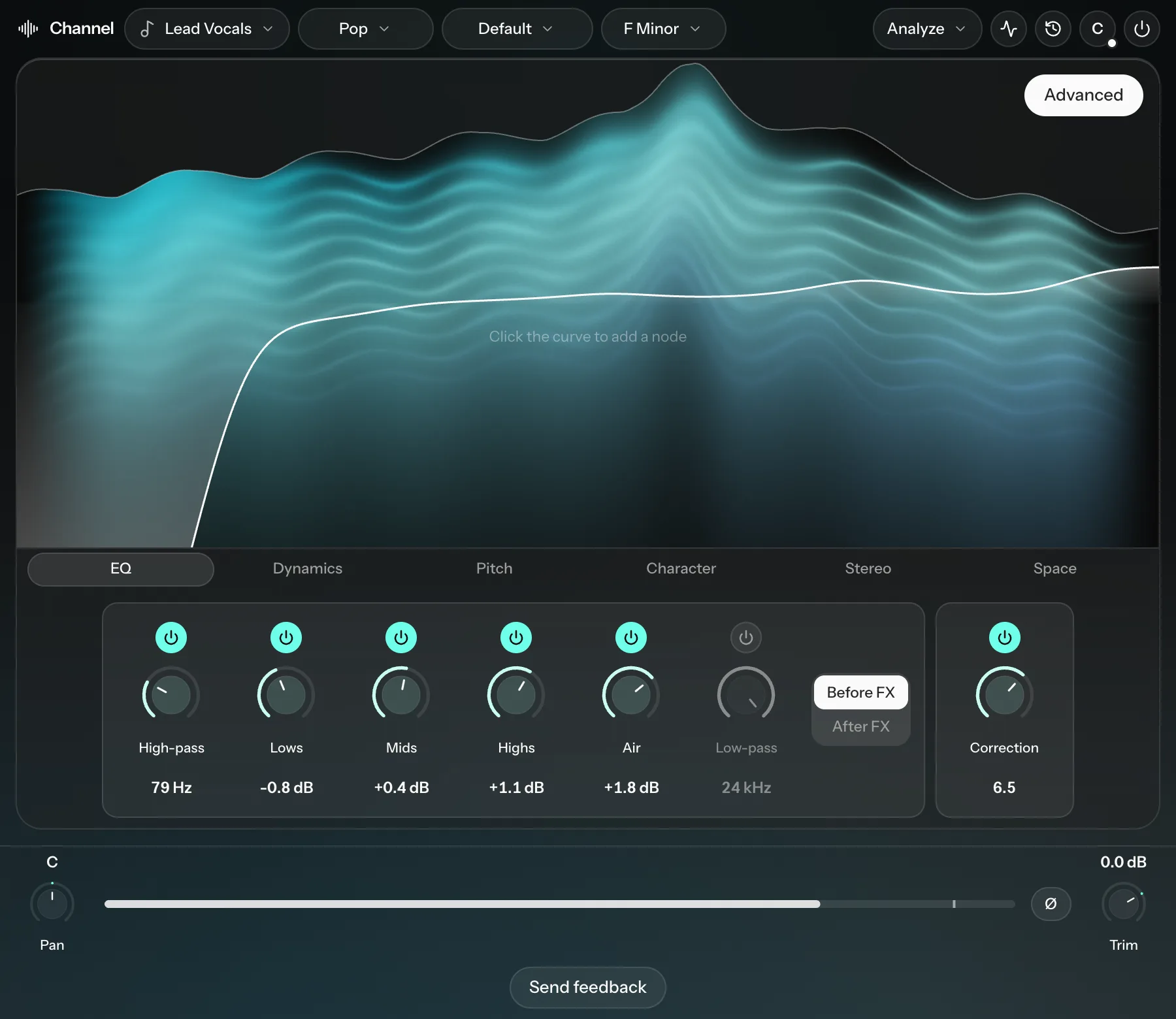
| Control | What it does |
|---|---|
| High-pass / Low-pass | Removes lows or highs. Open the control's settings to choose the Falloff: 12 dB, 24 dB (default), 36 dB or 48 dB. Gentler slopes sound more natural, so only go steeper when you need a sharper cut. |
| Lows, Mids, Highs, Air | Quick tone bands. The middle position is neutral; turn left to cut and right to boost, by up to about 5 dB. |
| Correction | How far the track is moved toward the tone curve Cryo Mix predicted for it, from 0 to 10. Turn on Plot on EQ chart to see that curve. |
Before FX and After FX
The Before FX / After FX switch, beside the EQ knobs under the chart, picks which EQ you're editing:
- Before FX (the default) runs before every other effect. It has the filters, tone bands, Correction and your own curve.
- After FX is a separate EQ that runs after the effects, for example after reverb and delay. It has its own high-pass and low-pass, tone bands and curve. Its filters have no Falloff setting.
Editing the EQ curve
Click an empty spot on the chart to add a node. New nodes are bells.
- Drag a node left or right to change its frequency, and up or down to boost or cut.
- Scroll over a node to change its Q (how narrow it is).
- Double-click a node to delete it.
Click a node to open its settings. You can change the filter type there: Bell, Low shelf, High shelf, High pass, Low pass or Notch. You can also type exact Freq, Gain and Q values. Use the headphones to solo the band, the power button to switch the node off, and the bin to delete it. A curve can have up to 32 nodes.
Finding a harsh frequency: add a bell, make it narrow (a Q of about 10), boost it and sweep it slowly across the range. When you hear the ring you don't like, turn the boost into a cut.